Airbnb Wi-Fi sign and QR code: what to print and where to put it
Updated 2026-08-25
Print the network name and password in plain text, large enough to read from a metre away, and next to them a Wi-Fi QR code — the kind that connects the phone when the camera reads it, with no typing. Put the sign where a guest is standing when they first want Wi-Fi: where the bags go down, not next to the router. Make the QR at least one tenth as wide as the distance it will be read from. The rest of this page is the detail: what the code contains, how big, where, and what breaks it.
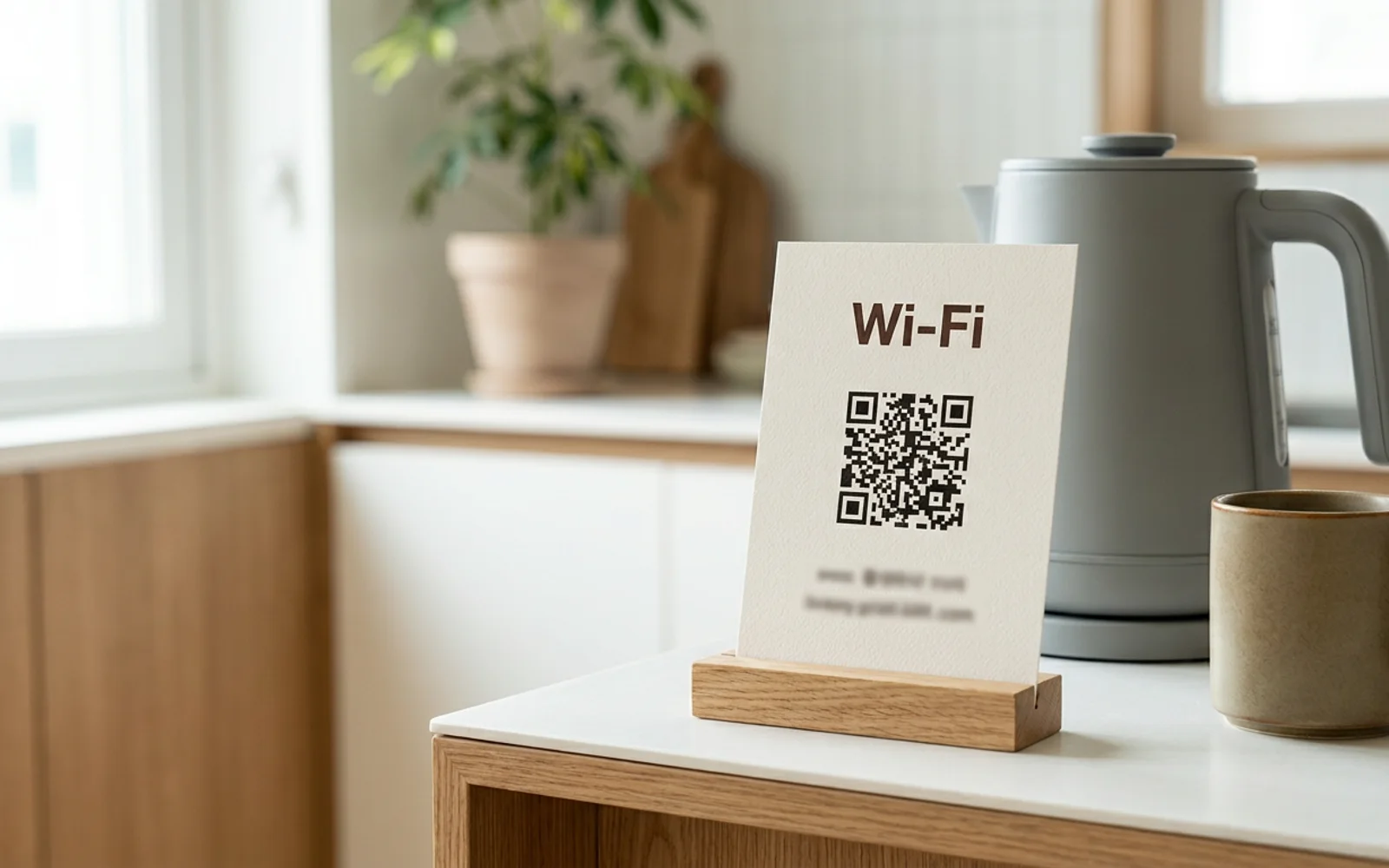
What the QR code contains
A Wi-Fi QR code is not a link. It is a short text string in a format the phone camera understands:
WIFI:T:WPA;S:YourNetworkName;P:YourPassword;;
T is the security type (WPA covers WPA, WPA2 and WPA3-Personal, which is every normal home router), S is the network name, P is the password. iPhones since iOS 11 and Android phones since Android 10 read this with the built-in camera app and offer to join the network. No app, no internet — which matters, because the guest is not online yet.
Two things to know before you generate one:
- **Five characters need a backslash in front of them:
\;,:".** A password likesea;viewmust be writtensea\;viewinside the code, or the phone reads the password asseaand stops. Most generators do this for you; if yours doesn't and your password contains one of the five, change the password. - Hidden networks and enterprise logins (username + password) don't work this way. For a rental, that means: use a normal named network with one password.
If the network has no password, the format is WIFI:T:nopass;S:YourNetworkName;;.
Any generator that produces the string above is fine. Avoid the ones that produce a link to a page that then shows the password — the guest has no internet to open the page with.
How big should the QR code be?
The rule of thumb for QR codes: the code should be at least a tenth as wide as the distance it will be scanned from. A phone camera focuses and decodes reliably at about ten times the code's width; closer or smaller and the guest is waving the phone around.
| Where the sign is | Typical scanning distance | Minimum QR width |
|---|---|---|
| On the table, guest seated or standing over it | 20–30 cm | 2–3 cm |
| On the fridge or a wall at eye level, guest steps up to it | 40–80 cm | 4–8 cm |
| Across a room, guest scans from the sofa | 2 m | 20 cm |
Sonnim's own printed QR card, which we tested on doors and shoe racks, uses a 60 mm code for the page link (read from 40–80 cm) and a 22 mm Wi-Fi code lower on the same card, which is read from close up once the guest is holding the card. Four cards fit on one A4 sheet, 105 × 148.5 mm each. A home printer can't print big, so the answer is not "bigger" but "four, cut, and placed."
Keep a plain white margin around the code — about four modules' width, the "quiet zone." A code printed edge-to-edge in a coloured box scans worse than a plain one with space around it.
Where do guests actually look for the Wi-Fi?
Hosts on Airbnb's community forum describe where they put it and what happened.
One host prints it, frames it, and puts it "next to the router and in the welcome binder"; another in the same thread has "a QR Code for WiFi logins for the guests. It is in our framed instructions for WiFi login." A host in a thread about tap-to-connect devices said what many hosts probably think when they first see one: "I already have signs all over the house with my wifi password. I can't believe I never thought of adding the QR code to the signs."
The same thread has the strongest case for the sign, from a host whose "cottage is in a valley with limited cell phone reception and sleeps 14 guests. Relying on the booked host to share the wifi password and house rules is less than ideal. They are often not even the first ones to arrive at the cottage plus sharing anything to a group of 14 tired people is never fun."
And the counter-view, which is worth hearing: a host of eight years wrote that the Wi-Fi is "available as part of the booking confirmation" and "not one [guest] has ever had an issue with finding the wifi code on their booking confirmation." That is true for the person who booked. The sign is for everyone else in the party, for guests who booked through another channel, and for the moment the phone has no signal to open the app.
So: the router is where the host thinks of Wi-Fi. The guest thinks of it where they put their bags down. Put the sign there — the entrance table, the kitchen counter, the fridge door — and a second one by the bed if the place is large. The router can have one too; nobody will read it.
What to print
Wi-Fi

Network   [YourNetworkName]
Password  [YourPassword]

[QR code, at least 4 cm]
Scan with your camera to connect
Keep the password in text next to the code. Laptops, older phones and e-readers can't scan; and a guest whose camera won't focus in a dark hallway will type it.
Use a font where l, 1, I, O and 0 are distinguishable, or avoid those characters in the password altogether. A password sign that guests keep mistyping is worse than none.
What breaks it
- A logo or a colour in the middle of the code. It works on a screen in daylight and fails on paper in a dim entrance. Decoration goes around the code, not in it. (Sonnim's cards follow this rule for the same reason: nothing touches the code itself.)
- Gloss. A laminated sign under a ceiling light reflects the light straight back into the camera. Matte paper, or a frame without glass, or move the lamp.
- A "dynamic" QR that points to a web page. The guest is not online. The code must carry the network name and password itself.
- The Wi-Fi code on the corridor side of the door. Anyone walking past now has your Wi-Fi. Inside the door, on the shoe rack, on the fridge — fine. Facing the corridor — page link only, if anything.
- A password with
;,:"or\that the generator didn't escape. See above. Test the code with your own phone before printing four of them. - Changing the password and not the sign. The old code keeps "working" — it just joins nothing. If you change the password, reprint the same day.
One line at the end
If you'd rather not assemble this by hand: Sonnim prints the Wi-Fi code and the link to your guest page on one card, four to an A4 sheet, sized for a door or a table.
You can make that card right now with the free Wi-Fi QR sign tool — enter the network name and password, pick the guest languages, print. The password never leaves your browser.
Sources
- Wi-Fi Alliance / de-facto QR format used by iOS 11+ and Android 10+ cameras (
WIFI:T:…;S:…;P:…;;) - Airbnb Community Center, "QR codes" — https://community.withairbnb.com/t5/Help-with-your-business/QR-codes/td-p/1509190
- Airbnb Community Center, "WiFi Porter and QR Code internet access" (2023) — https://community.withairbnb.com/t5/Advice-on-your-space/WiFi-Porter-and-QR-Code-internet-access/m-p/1845865
- Sonnim QR card specification (postcard 105 × 148.5 mm, main QR 60 mm, Wi-Fi QR 22 mm, four per A4)